When you schedule a text, you relieve yourself from the hassle of sending the message at a particular date or time manually, scheduling text messages is the act of setting timed messages that can be sent automatically at a later date or time.
A lot of business owners are adopting the practice of scheduling text messages to improve communication, streamline operations, and enhance customer engagement as it helps them stay organized, and increase efficiency.
Fun fact: 75% of customers in the US prefer texting as the mode of communication with businesses.
If you’re a business owner looking to enhance communication and improve overall customer engagement, then you must know how to schedule text messages.
When to schedule a text message?
To answer this question, let’s put you in a situation.
Imagine you own a dental practice and have a very busy schedule in the coming week. You have appointments lined up one after the other and you have no time to send appointment reminders to all your patients for the week. Chances are that you might forget to send them appointment reminders, which might end up as a no-show. This is when scheduling text messages can be very effective, you can schedule text messages to remind your patients of upcoming appointments and even automate these so they go out at a pre-defined date and time.
You can also engage seamlessly with your customers by scheduling text messages. Let’s say you run a salon and you want to inform your customers about upcoming events or promotions. You can simply schedule a text message reminding them about such an event in advance.
You can even schedule text messages to remind your friends and family about an upcoming event. For example, if there is a party happening next week, you can simply schedule a text message to be sent out a day prior to the event reminding everyone of the timing and the location.
Once you schedule the message, you need not worry about it and can focus on other tasks at hand. The message would reach the recipient at the scheduled time. This brings us to our next question: How to schedule a text message?
It’s fairly easy to schedule a text message. We’re going to cover four ways to do so:
How to schedule a text message on iOS?
How to schedule a text message on Android?
How to schedule a text message using a third-party messaging app?
How to schedule a text message using a business texting software
How to schedule a text message on an Iphone
It is not possible to schedule messages on the default messaging app on iPhone, you can either set up a reminder or install a third-party app to do so.
How to set text reminders on iPhone
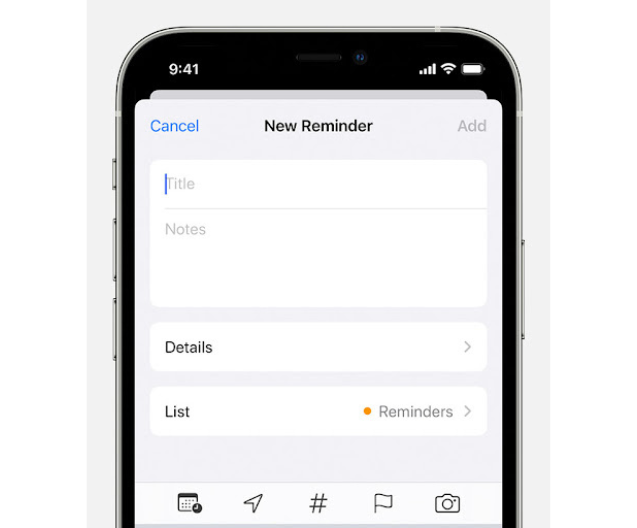
While you cannot schedule messages on your iPhone, you can definitely remind yourself to send messages for a particular date and time by using the reminder app. You can follow these steps to schedule a reminder and use it to send messages.
Step-1: Open the Reminders app
Step-2: Tap “+ New Reminder”
Step-3: Give your reminder/message a title
Step-4: Type and compose your text message as a reminder
Step-5: Add details (optional)
Step-6: Add it to a list (optional)
Step-7: Tap the calendar icon to schedule your reminder
Step-8: Click on Done
Step-9: When the reminder comes in – Copy the message from your reminder
Step-10: Paste your message into the Messages app on your iPhone and hit Send
The only upside of this message is that you’ll at least be reminded that you have to send a text message.
If you want to send timed messages to your recipients, you need to download a third-party app on your iPhone. Apps such as the ‘Scheduled App’ can help you schedule texts on your iPhone.
How to schedule a text through the Scheduled App
If you wish to schedule texts using the Scheduled App, follow these steps:
Step-1: Download the Scheduled App from the App Store
Step-2: Add your details and sign up
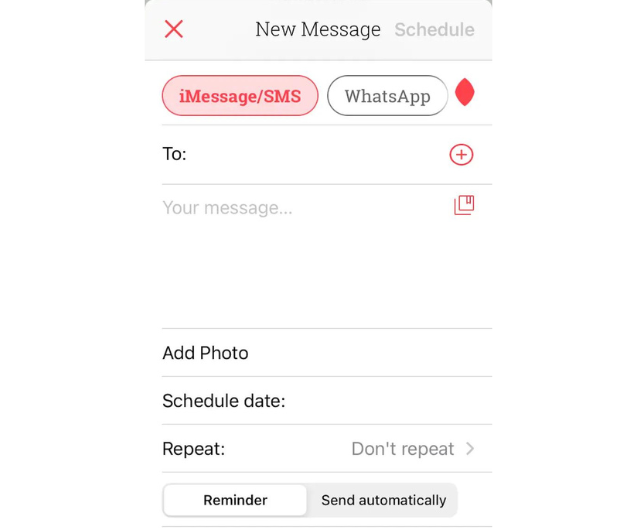
Step-3: On the Home Screen, click on the ‘+’ icon.
Step-4: Choose your recipients
Step-5: Type your message
Step-6: Click on ‘Schedule Date’ and choose the date you want to send the message on
Step-7: There is also an option to repeat your message, you can simply choose the cadence for the same as well
Step-8: If you want a reminder to send the message, then click on ‘Reminder’. If you want the message to go on a specific date, then click on ‘Send Automatically’.
Step-9: Click on ‘Schedule Message’ and you’re done!
Note: There are four plans offered by the Scheduled App. You need to select the Premium (paid) plan if you want to send timed messages to your recipients.
There are also other apps that you can explore such as Fext, Kyew, and Reminderbase if you wish to schedule a text message on an IoS device.
How to schedule a text message on Android
It is possible to schedule messages on Android using the default messaging app depending upon the maker of your device. Alternatively, you can also set a reminder to send a message on a later date.
How to schedule a text reminder on Google Calendar App
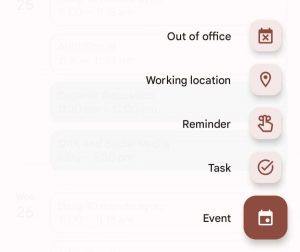
All Android apps come preinstalled with the google calendar app. This can be used as a way to set reminders to send the message and structure the content of the message beforehand. You can follow these steps to create an event through Google Apps.
Step-1: Open the Calendar app
Step-2: Create a new Event
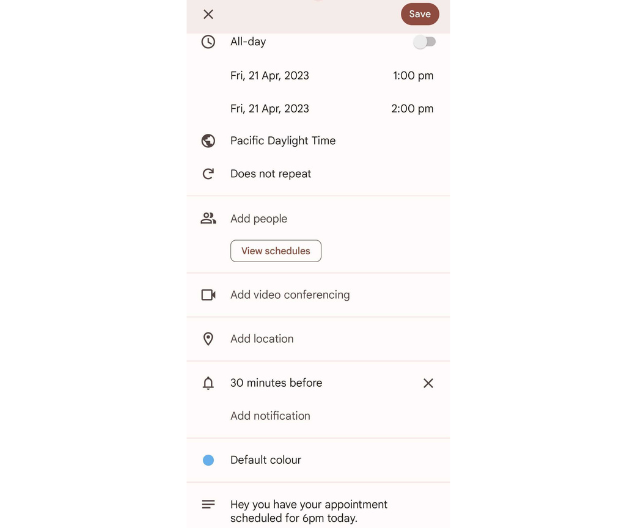
Step-3: Choose a date and time to send and type the message
Step-4: Upon receiving the reminder, simply open the reminder, copy the text you have structured for the message and paste it into your phone’s default messaging app, and send the message.
How to schedule a text if you are a Samsung user
If you are a Samsung user, scheduling a text is extremely easy as you can use the default message app to schedule the messages. Follow these steps :
Step-1: Open Samsung Messages.
Step-2: Compose your message, and add the recipient and content of the message.
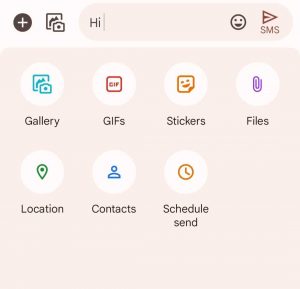
Step-3: Once you’ve composed your message, do not click on the arrow on the right side. Instead, click on the ‘+’ sign.
Step-4: Click on ‘Schedule Send’.
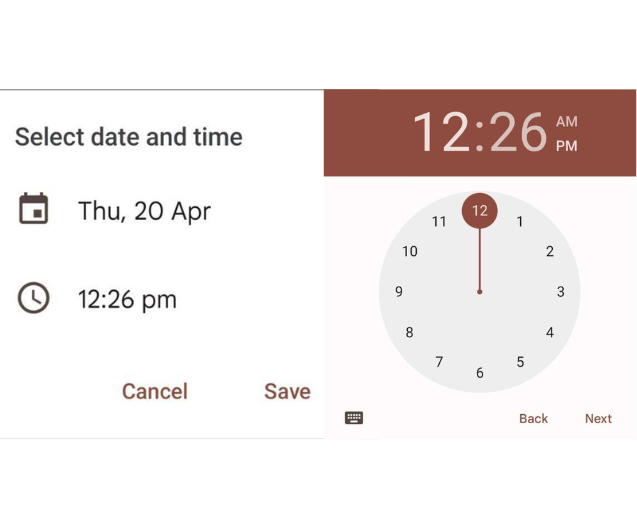
Step-5: Select the date and time for sending the message
Step-6: Once you’ve set the time and date, click on ‘Save’ and you’re all set!
How to schedule a text in other Android phones
If you don’t own a Samsung mobile, you can easily schedule text messages on your Android phone. Follow these steps:
Step-1: Open your default messaging app
Step-2: Select your recipient
Step-3: Type your message, and click on the ‘+’ option. You’ll see ‘Schedule Send’ as one of the options.
Step-4: Click on it and select a date and time to send the message.
Step-5: Hit ‘Save’ and you’re done!
How to send a text through a third-party app
If you don’t have the option of sending timed texts on your Android device, you can also use third-party apps to schedule texts. Here is a list of some third-party apps to get you started:
All you need to do is sign up on your preferred app, select your recipients, type your messages, and schedule those for a later date and time.
How to schedule a text using a texting software
While it is possible to schedule a text message on both iOS and Android, it isn’t the most efficient in terms of time and cost. Sending scheduled texts through Android and iOS can prove to be tedious if you have to send timed messages to a large group of people. This is when having a texting software can come in handy. A texting software like Emitrr can make scheduling messages a lot easier than sending scheduled texts on your personal devices.
With a business, it becomes quite difficult to send messages to customers via mobile phones. If you wish to schedule messages for a text message marketing campaign, you would want to send them to multiple recipients and also have the ability to personalize the messages and also define the frequency of your texts, this is where dedicated texting softwares can be of great use.
Emitrr, for example, is a texting software that allows you to schedule texts at your convenience. All you need to do is select your recipients, type your message, and schedule it for a specific date or time. You can send the message to as many people as you want and you can also define triggers so that these messages can automatically go out once a particular event occurs.
Whether you wish to send a reminder, a notification, any time-sensitive information, or marketing messages; you can utilize this messaging capability to easily communicate with your recipients/customers.
How to schedule a text using Emitrr
Step-1: Log In to the Emitrr software
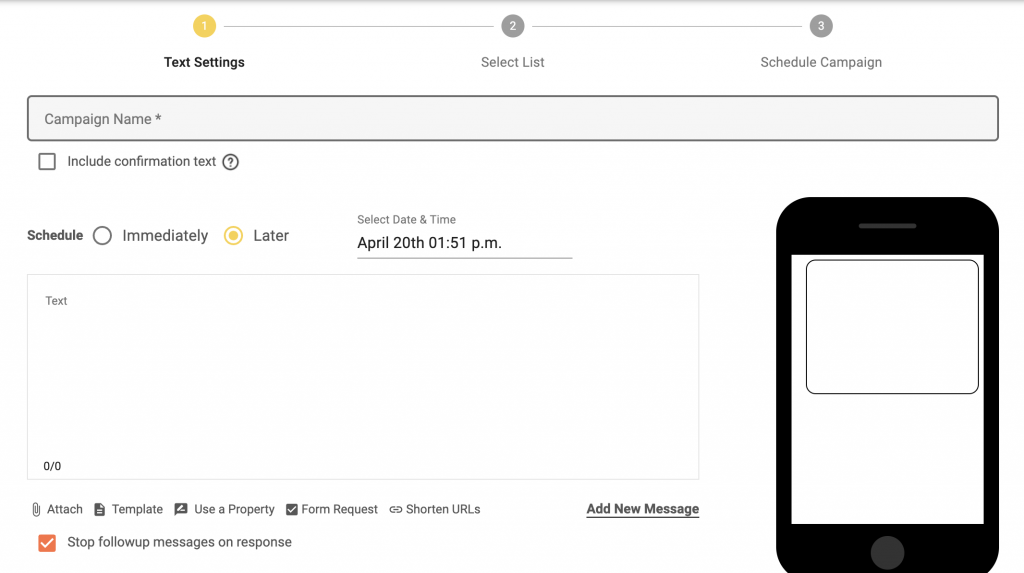
Step-2: Go to ‘ Text Campaigns’ on the left side of your dashboard, and click on ‘Automated Campaign’.
Step-3: Name your campaign, and on the ‘Schedule’ option, click on ‘Later’.
Step-4: Type your message. You can use a pre-existing template and a property to customize your message, and can even add an attachment.
Step-5: Click on ‘Save and Next’.
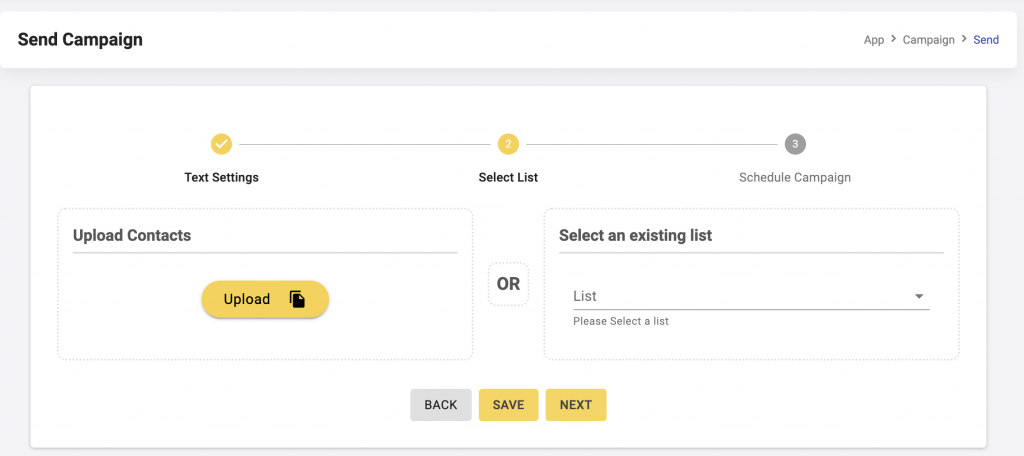
Step-6: Select the list of contacts to whom you wish to send the text message. Once you’ve selected your list, click on ‘Save and Next’.
Step-7: Schedule your campaign, hit save and you’re done!
This is how you can schedule text messages using a texting software. If you want to know how to schedule a text in detail, check out this video!
What is the best way to schedule text messages?
If you’re a business and you ask us the best way to schedule text messages among iOS, Android, and texting software; we would definitely recommend using a texting software. Here’s why:
Since you run a business, you need methods that help you save time and improve engagement. Using a texting software to schedule text messages is what you need to achieve efficiency and streamline operations. With a texting software you can:
Schedule messages to go at a later date
Decide the cadence/frequency of sending follow-up messages
Choose from a variety of templates and properties
Include attachments such as images, videos, and documents
Add signatures to text messages
Check metrics
A texting software like Emitrr can fulfil all your texting needs and help you enhance productivity and build strong engagement with your customers. Whether it is about cancelling and rescheduling appointments, sending appointment reminders, sending automated review requests, or payment follow-ups; you can make use of many texting capabilities offered by Emitrr to enhance your customer communication and engagement. Above all, you can schedule your texts and sit back, without having to worry about the message delivery.
Now that you’re familiar with the best way to schedule text messages, it is important to understand the benefits of scheduling texts and the situations where sending timed messages can save the day.
Importance of scheduling text messages
Scheduling text messages is important due to the following reasons:
To send time-sensitive information: Let’s say you have to send a reminder to one of your patients about a specific medication that they need to take at a particular time. Your work day concludes at 5 pm but the medicine has to be taken at 8 pm. You can simply schedule a text message to be sent out before 8 pm prompting the patient to take the medicine.
To improve engagement: Businesses can use schedule texts in a variety of ways to enhance engagement, a carefully thought out customer communication strategy can help you drive more conversions, generate more reviews etc.
To save time: If you have a lot on your plate and are having difficulty managing your time, then scheduled texts can become your best friend. You can create your messages ahead of time and schedule them to go out on a future date. This will help reduce the burden on you and will also ensure that nothing is being missed out.
Use cases of scheduling text messages
Appointment reminders and confirmations: You use the feature of text scheduling to send out appointment confirmations and reminders to your customers.
Payment reminders and confirmations: You can follow up with your customers on any pending or processed payments by scheduling text messages.
Marketing campaigns: If you want to send out offers or special discounts to your customers through mass texts and build engagement, scheduling texts is a great way to do it.
Notifications and updates: Any important updates can be communicated with customers and the internal team by scheduling text messages.
Communicating across different time zones: If your client is from a different country and you wish to send messages as per their timings, then scheduling texts come in handy.
Sending greetings: Sending birthday texts and season greetings work best when you have such texts scheduled.
Survey and feedback texts: When you’ve served a customer, you can simply schedule a text message for a later date asking for their feedback and prompting them to fill out survey forms.
Review requests and follow-ups: You can even send out review requests to your customers and schedule follow-up texts for later.
Conclusion
We hope you got the answer to your question ‘How to schedule a text message’. To build a successful business, you need to ensure that your customers are satisfied, their issues are being addressed, and their queries are being answered.
You can achieve all these things with a time and cost-saving method like texting. Emitrr’s texting functionalities can give you the much-needed push to engage with your customers like a pro. Book a demo and plan your customer communication strategy well in advance.


 4.9 (400+
reviews)
4.9 (400+
reviews)